Create and Manage Training Courses
Create training that actually helps your team get better. The Courses section lets you build training materials, assign them to the right people, and see how well they're working.
Team leads want their agents to grow and improve. The Courses section gives you everything you need to create training that works and make sure everyone learns what they need to know.
What are Courses? The Courses section is where you create and manage training for your team. You can build courses, add content, track who's completed what, and see how well your training is working.
What You Can Achieve
The Courses section helps you:
Create Effective Training
- Build courses that teach the right skills
- Set clear goals for what people should learn
- Design quizzes that test understanding
Manage Your Content
- Organise training materials properly
- Upload resources like PDFs and links
- Create learning paths that make sense
Deliver Results
- Track who completes what
- Monitor how well people are learning
- Make sure skills actually improve
Understanding the Courses Interface
The Courses section puts all your training in one place, with features that make it easy to manage:
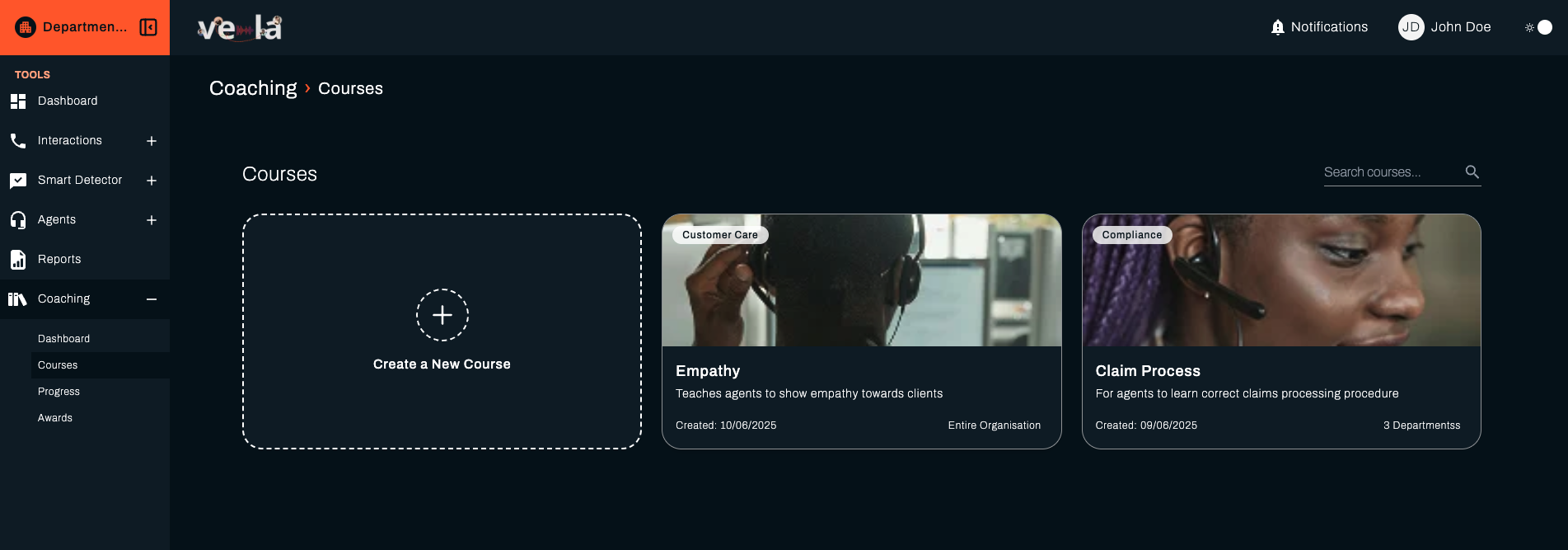
- Search Bar: Quickly find courses by name, category, or keyword
- Course Details Overview: See at-a-glance metrics for each course - showing the Course Title, Description, Date Created, Category and Scope
💡 Tip: When you have lots of courses, use the search to find what you need quickly.
Creating a New Course
Good training helps your team develop. Follow these steps to create a course that meets your team's needs.
Step 1: Navigate to Create Course Page
Click the Create a New Course card in the top left of the Courses page.
Why this matters: This takes you to the course creation form where you can set up everything you need.
Step 2: Fill in Course Details
Fill in the course creation form with these details:
- Course Title: Enter a clear, descriptive name for your course
- Course Description: Provide a clear overview of what the course covers
- Course Category: Choose the relevant skill category
- Scope: Select the appropriate scope (Entire Organisation, Specific Departments, Specific Teams)
💡 Pro Tip: Pick a title that tells people exactly what they'll learn. "Customer Service Basics" is better than "Training Course 1".
Step 3: Add Course Content
Build your course content using the content editor to create engaging learning experiences:
- For each module you have the following options:
- Provide an external link to the course material resources
- Upload materials (PDFs)
- Drag and drop your preferred courses cover image or use our best quality theme images
Why this matters: Well-organised content helps agents learn and remember information better, leading to improved skills.
Step 4: Add Quiz Content
Define what agents need to complete to finish the course and demonstrate their understanding:
- Create questions for your course assessment
- We support three types of questions: Short, Long Paragraphs and Multiple Choice questions
- Provide the points/score for each question in this section
- You also have the option to select the expected correct answer for Multiple Choice questions
- Mark if a question is compulsory to answer by toggling the Required button
💡 Pro Tip: Mix different question types to test various levels of understanding - from basic knowledge to practical application.
Step 5: Set Deadlines & Reminders
Help agents stay on track with clear timelines and gentle nudges:
- Set the number of Quiz Retakes which determines the number of times agents can retake the quiz if they fail
- Set Deadlines for agents in Days, Weeks or Months. This is the time agents have to complete the course after assignment
- Set Course Nudges for when to send reminders to agents to complete the course
Why this matters: Clear deadlines and reminders help agents prioritise their learning and ensure training doesn't get lost in their busy schedules.
Step 6: Create Course
Click Create Course to finalise your training programme.
⚠️ Important: The platform will notify you if course creation is successful or if there were any issues with creating a course.
Course Cards
Each course is represented by a card showing:
- Course title and thumbnail/cover image
- Date created
- Scope
- Category
Click on any course card to view detailed information and management options.
💡 Tip: Course cards provide a quick visual overview of your training library, making it easy to identify and manage specific programmes.
Managing Existing Courses
Effective course management ensures your training materials remain relevant and effective as your team's needs evolve.
Course Details Page
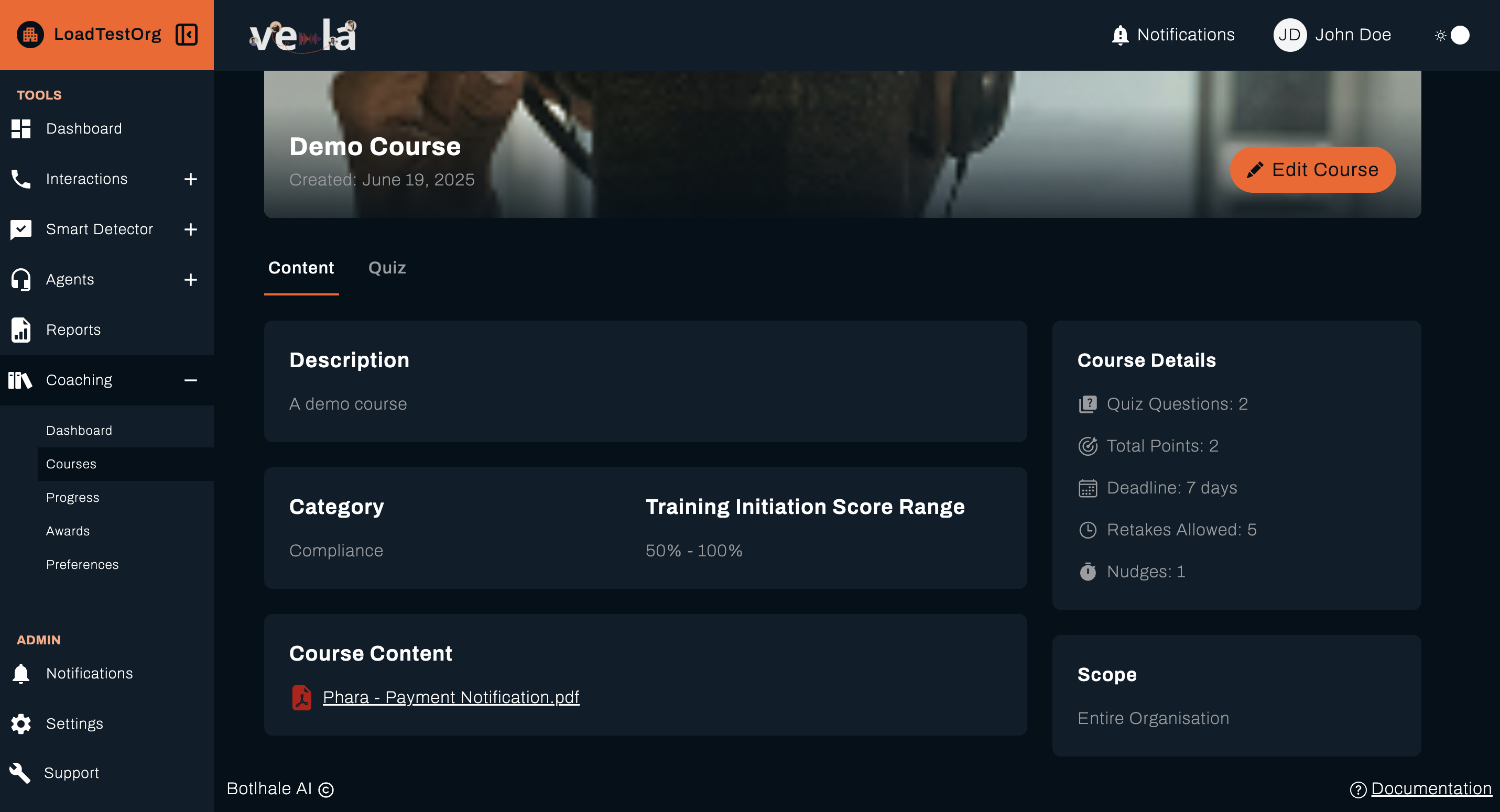
Access a course's details page by clicking on its card in the Course List. From here, you can:
- Edit Course: Update content, requirements, or details
- View Course Content: Description, Category, Training Initiation Score Range, Course Details, Scope and Course Content (PDF/Link)
- View Course Quiz: See the quiz questions, scores
Why this matters: Regular course updates ensure your training stays current with changing business needs and agent skill requirements.
What's Next?
Now that you can create and manage courses, explore these related guides:
- 📊 Monitor Progress - Track how agents are progressing through courses
- 🏆 Set Up Awards - Create recognition programmes for course completion
- 📞 Review Interactions - Analyse how training impacts performance
- 📈 Check Your Dashboard - Monitor overall training effectiveness
Need Help?
Stuck with course creation? We're here to help!
- 📖 Progress Tracking Guide - Learn about monitoring course completion
- 📖 Awards System Guide - Set up recognition for course achievements
- 📖 Dashboard Guide - Monitor overall training effectiveness
Still need assistance?
- Email us: support@botlhale.ai
Was This Guide Helpful?
We're constantly improving our documentation. Let us know how we can make this guide better for you and your team.