Getting Started - A Tour of the Team Lead Portal
Welcome to the Vela Coaching Portal! This guide will help you start managing your organisation's performance and driving measurable improvements.
What is the Vela Coaching Portal? The Vela Coaching Portal is your command centre for agent development, offering course management, progress tracking, awards recognition, and performance insights to help you build a high-performing organisation.
What You'll Achieve
By the end of this guide, you'll be able to:
- Set up an automated evaluation cycle for your agents by configuring Preferences
- Monitor your organisation's performance in areas of concern with detailed analytics on the dashboard
- Create and assign training courses to develop specific skills
- Track learning progress and identify agents who need support
- Recognise excellence with awards and certificates
- Drive measurable improvements through data-driven coaching
Understanding the Vela Interface
Before we dive into the features, let's quickly familiarise you with the Vela Coaching Portal interface:
Left Navigation
The left navigation bar is your main navigation hub in the Coaching Portal. You'll find the Coaching section below SMART DETECTOR, which contains all your team development tools:
Coaching Section:
- Dashboard - Your team's performance overview with customisable metrics
- Courses - Create and manage training programmes
- Progress - Track learning completion and trends
- Awards - Set up recognition programmes
- Preferences - Configure your portal settings and preferences
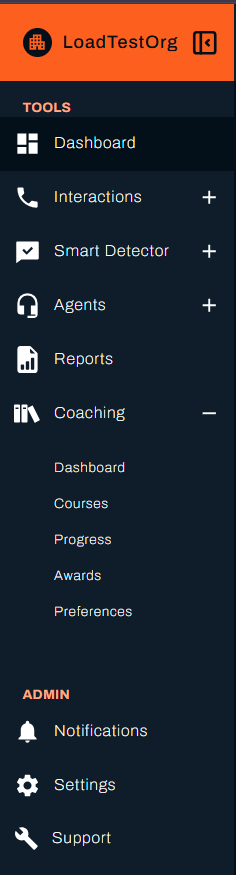
💡 Tip: The left navigation provides easy access to all sections of the Coaching Portal, making it simple to switch between different areas of your team management workflow.
Quick Setup Checklist
Step 1: Set Up Your Preferences (Start Here!)
Goal: Define the rules for how coaching runs in your team
The very first thing you should do when you start using Coaching is set up your Preferences. Preferences control how agents are evaluated and how often those evaluations happen.
- Go to "Coaching" → "Preferences" in the left navigation
- Set the Scope → Decide which interactions should be included in evaluations
- Set the Evaluation Cycle → Choose how often automated evaluations run (daily, weekly, monthly)
When evaluations are triggered, Vela automatically:
- Checks all criteria you’ve defined in your scorecards
- Assigns courses to agents who meet the criteria defined in preferences or courses
- Presents awards to agents who achieve recognition thresholds defined in each award
This means your Preferences act as the default automation engine for coaching in Vela. Once you’ve configured Scope and Cycle, the system will consistently apply the rules you set, saving you time and ensuring fair, data-driven coaching across your team.
Why this matters: Without Preferences set up, automated course assignments and award recognitions won’t run. Think of Preferences as your coaching autopilot.
Step 2: Explore Your Dashboard
Goal: Understand your team's current performance landscape
Your dashboard is your command centre for team insights. It shows you everything you need to know at a glance.
- Review the Dashboard to see your team's performance metrics
- Use the Date Range filter to analyse specific time periods
- Identify trends in Category Scores and Auto Fails
- Spot coaching opportunities based on performance data
📊 Dashboard guide - Learn about all dashboard features and metrics
Why this matters: Your dashboard helps you make data-driven decisions about where to focus your coaching efforts.
Step 3: Create Your First Course
Goal: Set up training to address identified skill gaps
Once you've identified areas for improvement from your dashboard, create targeted training to help your team grow.
- Go to "Coaching" → "Courses" in the left navigation
- Click "Create a New Course"
- Add course details (title, description, category, scope)
- Upload training materials (PDFs or external links)
- Create quiz content to test understanding
- Set deadlines and reminders for completion
📚 Course creation guide - Learn about advanced course features and best practices
Why this matters: Structured training ensures consistent skill development across your team.
Step 4: Set Up Awards and Recognition
Goal: Create recognition programmes to motivate your team
Build a culture of excellence by setting up awards that recognise outstanding performance and achievements.
- Go to "Coaching" → "Awards" in the left navigation
- Review pre-built awards like "Excellent Customer Care" and "No Auto-Fail"
- Click "Create New Award" to design custom recognition
- Set award criteria (score thresholds, categories, scope)
- Write personalised messages for award recipients
- Configure automatic award distribution based on performance
🏆 Awards guide - Learn how to create and manage recognition programmes
Why this matters: Recognition programmes boost team morale and motivate agents to excel.
Step 5: Track Progress and Monitor Development
Goal: Monitor learning progress and identify support needs
Keep track of how your team is developing and identify who needs additional support.
- Go to "Coaching" → "Progress" in the left navigation
- Review completion status with colour-coded indicators (Complete, In Progress, Not Started)
- Use date range filters to analyse specific time periods
- Identify agents falling behind and provide targeted support
- Monitor performance trends to measure training effectiveness
- Download progress reports for team meetings
📈 Progress tracking guide - Learn how to monitor and support agent development
Why this matters: Regular progress monitoring helps you identify coaching opportunities and ensure everyone stays on track.
Next Steps
Now that you're familiar with the basics, here are some next steps to improve your team's success:
For New Teams
- Start with weekly progress reviews to establish coaching rhythms
- Create introductory courses to build foundational skills
- Set up regular award programmes to boost morale
For Established Teams
- Use monthly evaluation cycles for ongoing development
- Create advanced courses for skill specialisation
- Implement complete recognition programmes
For Performance Improvement
- Increase evaluation frequency to daily for intensive coaching
- Create targeted courses for specific skill gaps
- Use detailed interaction reviews for personalised feedback
💡 Pro Tip: The Vela Coaching Portal is designed to grow with your team. Start with the basics and gradually explore advanced features as your coaching programme matures.
🎉 You're All Set!
Congratulations! You've just completed your first steps with the Vela Coaching Portal. You're now ready to improve your team management with data-driven coaching and development tools. The portal provides everything you need to build a high-performing team through structured learning and recognition.
Team leads face unique challenges - managing performance, developing skills, and maintaining motivation. The Vela Coaching Portal helps you see what's really happening so you can make informed coaching decisions.
You've just discovered the capabilities that will help your team work better!
What's Next?
Daily Operations
- Monitor your dashboard - Track daily performance and trends
- Check course progress - Identify agents who need support
- Review awards and recognition - Celebrate team achievements
Team Development
- Create training courses - Develop specific skills and knowledge
- Recognise excellence - Build a culture of achievement
- Track learning outcomes - Measure the impact of your coaching
- Customise your preferences - Tailor the portal to your needs
Advanced Features
- Generate reports - Create detailed performance summaries
- Manage team structure - Configure departments and teams
- Set evaluation cycles - Configure automatic assessment frequency
💡 Pro Tip: Use the left navigation in the Vela Coaching Portal to quickly access any section. Each section has its own dedicated documentation that you can reference while working in the platform.
Need Help?
Don't worry! We're here to help! Here's how to get support:
- 📧 Contact Support: support@botlhale.ai
- 🎥 Video Tutorials: Available on the homepage
Was This Guide Helpful?
We're constantly improving our documentation based on your feedback. Let us know how this guide worked for you:
Did this guide help you get started with the Vela Coaching Portal?
- ✅ Yes - I was able to set up the portal successfully
- ❌ No - I need more help
What could we improve?
- More detailed steps
- Better screenshots
- Additional examples
- Different organisation
Send your feedback to: support@botlhale.ai